Phone photos of receipts, certificates, handwritten notes and ID cards are awkward to send one by one, and most forms want a single PDF anyway. JPG to PDF builds one document from several images, in the order you choose, without uploading them anywhere.
Steps
- Open JPG to PDF on your phone or computer.
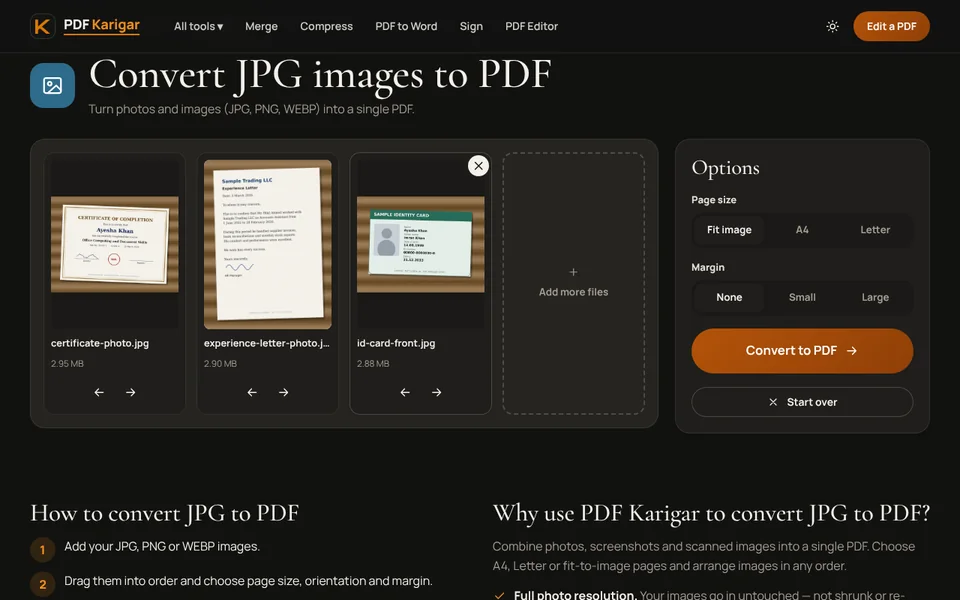
- Add your JPG, PNG or WEBP images. You can pick several at once from the gallery, Files or a folder.
- Drag the thumbnails into the order you want the pages to appear.
- Choose a page size and margin (see below), then create the PDF and download it.
Choosing the page size
- Fit image makes every page exactly the shape of its photo. Best for sharing on screen, such as sending receipts to your accountant.
- A4 or Letter places each image on a standard sheet. Use it when the PDF will be printed or uploaded to an official form, since many forms expect A4 pages.
- Orientation on Auto gives landscape photos a landscape page and portrait photos a portrait page. Choose Portrait or Landscape to use one direction for every page.
- Margin adds white space around each image. A small margin stops printers from cutting off the edges of a document photo.
Quality and file size
Normal JPG photos go into the PDF unchanged, at full resolution, so nothing is lost. Photos taken sideways are turned the right way up automatically. The flip side is size: ten photos from a modern phone can make a PDF of 20 to 40 MB. If the file is for email or an upload form, finish with Compress PDF and pick the size you need, such as 100 KB or 200 KB.
Getting better pages from phone photos
- Shoot in daylight, straight above the paper, with the page filling the frame. Angled photos look skewed and are often rejected by portals.
- Still holding the paper? Use Scan to PDF instead. It takes the photo with your camera and applies a document filter that makes the background white and the text darker.
- For an ID card, photograph the front and the back and add them one after the other, so they land on consecutive pages. If a form insists on both sides on one page, see how to scan documents with your phone.
Common uses
- Expense claims: one PDF per claim with every receipt in date order.
- Applications: certificates and transcripts as one file, in the order the form lists them.
- Notes and whiteboards: photos of class notes or a meeting whiteboard as a single document you can find later by its file name.
Before you send it
Open the finished PDF and scroll through every page once. Check that no photo is missing or duplicated, that each page is the right way up, and that small print is readable when zoomed in. Give the file a name that says what it is, such as “Receipts-March-2026.pdf” or “Ali-Raza-Degree-Transcript.pdf”, rather than the “images.pdf” your browser suggests. If the photos show personal details nobody needs, such as an account number on a receipt, black them out with Redact PDF before sharing.
Mixing photos and existing PDFs
JPG to PDF accepts images only. To combine photos with documents that are already PDFs, convert the photos first, then join everything with Merge PDF. To fix the order or turn a page afterwards, use Organize PDF or Rotate PDF.
Images are read on your device. Nothing is uploaded to build the PDF.
Frequently asked questions
How many images can I put in one PDF?
There is no fixed limit. The images are processed on your device, so the practical limit is its memory. Dozens of phone photos are fine on a modern phone; for hundreds, build the PDF in batches and merge them.
Will my photos lose quality?
No. JPG to PDF places normal JPG photos into the PDF byte for byte, at their full resolution. Only sideways photos, CMYK images and other formats are redrawn, and those are saved at high quality.
Can I add iPhone HEIC photos?
HEIC photos work where the browser can read them. If one is refused, share it as a JPG first, or set the camera to Most Compatible in the iPhone Camera settings so new photos are saved as JPG.