Scanned documents and phone photos often end up sideways or upside down. Most PDF viewers have a rotate button, but in many of them, including those built into web browsers, it only turns the page on your screen. Close the file, send it to someone else, or upload it to a form, and the page is sideways again. To fix it for good, the rotation has to be saved into the PDF.
How to rotate and save
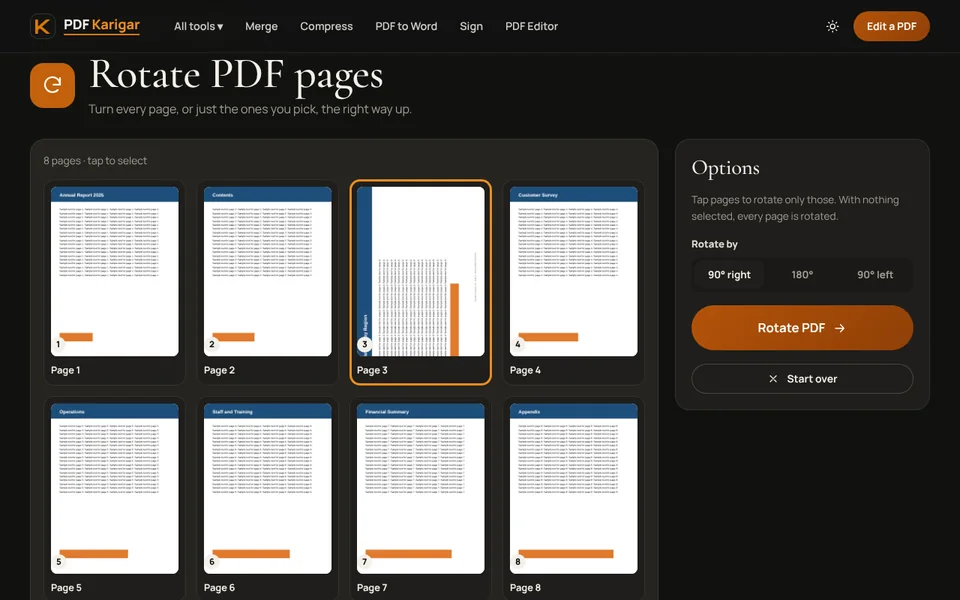
- Open Rotate PDF and add your file. Each page is shown as a thumbnail.
- To turn only some pages, tap them. With nothing selected, every page is rotated.
- Choose 90° right, 180° or 90° left.
- Press Rotate PDF and download the corrected file. It now opens the right way up in every viewer.
Which direction do I need?
- Text runs bottom to top (the top of the page is on the left): rotate 90° right.
- Text runs top to bottom (the top of the page is on the right): rotate 90° left.
- Upside down: rotate 180°.
Documents with mixed orientation
Reports often contain a few landscape pages, such as wide tables or charts, among portrait pages. Those should stay landscape. Only rotate the pages that are actually wrong, so readers do not have to turn their screen for every chart. If you also need to reorder pages or delete some, Organize PDF does rotation, ordering and deletion in one place.
Avoiding sideways pages in the first place
- Phone photos: photos record which way the phone was held, and JPG to PDF uses that to turn them the right way up automatically. If a photo was taken flat on a table, the phone may guess wrong; hold it upright for a moment before taking the shot.
- Scanners: place pages consistently, top edge first. Most rotation problems in multi-page scans come from one page fed the other way.
- Phone scans: Scan to PDF lets you check each page before the PDF is made.
Does rotating change anything else?
No. Rotation is stored as a setting on each page, so text stays selectable, links keep working, images keep their quality and the file size stays the same. Your original file is not changed; you download a corrected copy.
Fixing a whole batch at once
If every page of a scan is upside down because the stack went into the feeder the wrong way, there is no need to tap each page. Leave all pages unselected, choose 180° and every page turns in one go. The same works for a phone scan where every photo came out sideways: select nothing and choose the direction once.
Rotating on a phone
Rotate PDF works the same in Chrome on Android and Safari on iPhone, and the thumbnails are large enough to tap. After downloading, open the file from Files or Downloads and check that it now opens upright before you upload or share it.
Pages that look rotated but are not
Occasionally a page is the right way up but its content was scanned at a slight tilt, so the text runs uphill. Rotation turns pages in quarter turns only and cannot straighten a small tilt. For those pages, rescanning with the phone held flat above the paper gives a much better result than any correction afterwards.
Printing rotated documents
Once pages are saved the right way up, printers handle them correctly. For a document that mixes portrait and landscape pages, leave the printer’s orientation on automatic so each page prints in its own direction. If you are combining the corrected file with others, do it after rotating, with Merge PDF.
Frequently asked questions
Why does my PDF open sideways again after I rotated it?
Most viewers, including the PDF viewers built into browsers, only turn the page on screen. The file itself is unchanged, so it opens sideways again next time. Rotate PDF writes the new orientation into the file.
Can I rotate only some pages?
Yes. Tap the pages that need turning and only those are rotated. With nothing selected, every page is rotated.
Does rotating reduce quality or file size?
No. Rotation only changes how each page is placed. Text and images are not re-encoded, so quality and size stay the same.