Many recruitment, admission and visa portals have separate upload boxes for a photo, a signature and each document, and some of those boxes accept only images. If your certificate, letter or ID copy is a PDF, the portal will refuse it until you turn the page into a JPG. PDF to JPG does that in your browser, page by page, without uploading the file anywhere.
Steps
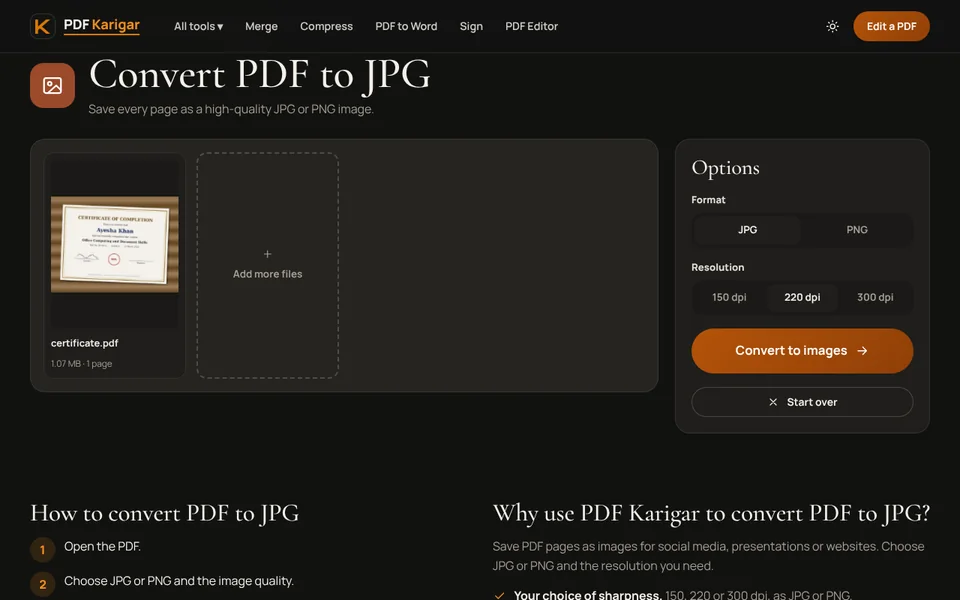
- Open PDF to JPG and add your PDF.
- Choose JPG as the format.
- Choose a resolution: 150, 220 or 300 dpi (see below).
- Press Convert to images and download. A one-page PDF gives one JPG; a longer PDF gives one JPG per page, together in a ZIP file.
Which resolution to choose
Resolution decides how many pixels each page gets, and so how big the image file is. In our tests with an A4 page:
- 150 dpi (1240 × 1754 pixels): a typed CV page came out at 61 KB and a scanned letter at about 300 KB. Easily readable on screen, and the right starting point for forms.
- 220 dpi: the same scanned letter was about 870 KB. Use it when small print or stamps look soft at 150 dpi.
- 300 dpi: about 1.6 MB for the scan. Print quality, rarely needed for an upload box.
When the form has a KB limit for images
Image upload boxes often say something like “JPG, maximum 200 KB”. A typed page at 150 dpi usually fits. A scanned page may not, and the image tools here have no size target, so try these in order:
- Send only what is needed. If the box wants one page from a longer PDF, pull that page out first with Extract pages, so you are not converting pages nobody asked for.
- Capture only the useful area. PDF Screenshot lets you draw a box around part of a page, such as the certificate itself without the white margins, and save it as a JPG at 150 dpi. Fewer pixels means a smaller file.
- Trim margins first. Crop PDF removes wide borders before you convert.
- Check whether a PDF is allowed after all. Many portals accept either format. A PDF can be brought to an exact size with Compress PDF, which images on this site cannot.
Signatures and photos
Signature and passport-photo boxes usually have their own pixel and KB rules, such as a fixed width and height. Those are image-editing jobs rather than PDF ones. If your signature is on a PDF page, capture just the signature with PDF Screenshot, then resize it with your phone’s photo editor if the form gives exact pixel dimensions.
Going the other way
If you have photos and the form wants a PDF instead, use JPG to PDF, then compress the result to the size the form allows.
Check before you upload
Open the JPG on your phone or computer and zoom in. Names, numbers, dates and stamps should be readable. Rename the file to something clear, such as “Bilal-Ahmed-Experience-Letter.jpg”, because some portals show file names to reviewers.
The conversion happens in your browser. Your documents are not uploaded to any server.
Frequently asked questions
What resolution should I choose for a form?
Start with 150 dpi. It is sharp enough to read on screen and keeps files smallest. Choose 220 dpi only if small print looks soft, and 300 dpi for printing.
Can PDF Karigar make a JPG under 100 KB?
There is no size target for images. A typed page at 150 dpi is often under 100 KB, but a scanned page is usually larger. Capture only the part the form needs with PDF Screenshot, or upload a PDF if the box accepts one, since Compress PDF can hit an exact size.
Should I choose JPG or PNG?
JPG for scans, photos and most forms, because the files are much smaller. PNG keeps flat text and lines perfectly crisp but is usually larger, so use it only when a form asks for PNG.