You do not need an office scanner for most paperwork. A recent phone camera captures more detail than a form needs; what makes a scan look professional is the way the photo is taken and cleaned up. Scan to PDF handles the clean-up and turns the pages into one PDF in your browser.
How to scan with PDF Karigar
- Open Scan to PDF on your phone and choose to take a photo, or pick photos you have already taken.
- Photograph each page. Add every page of a document in the same session so they end up in one file, in order.
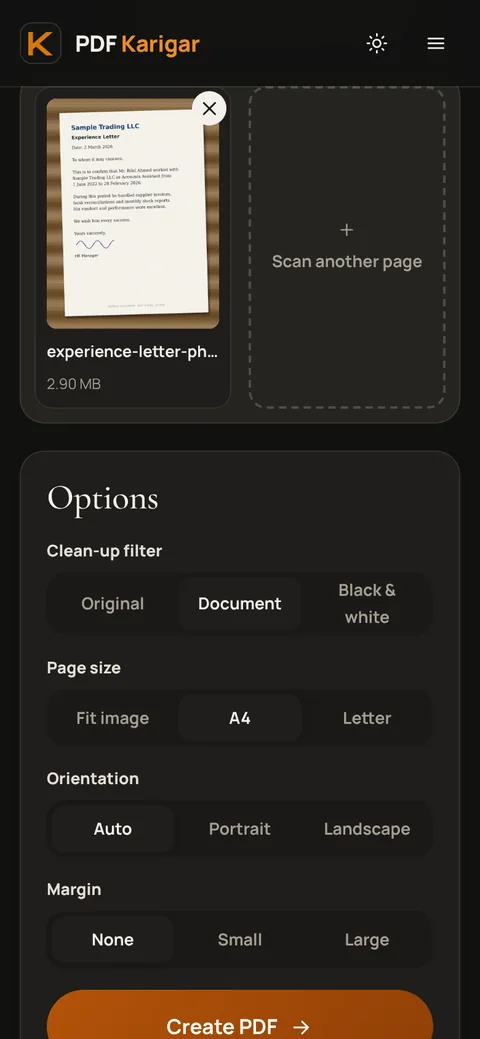
- Choose a filter. The document filter whitens the background and darkens the text, which is best for letters, forms and certificates. Keep the original colours for photos and colourful documents.
- Create the PDF and save it to your phone.
Taking a photo that looks like a scan
- Light: daylight near a window is best. Overhead room lights often cast your own shadow across the page; turn so the light falls from the side.
- Background: put a light page on a dark, plain surface so the edges stand out. Avoid patterned tablecloths.
- Angle: hold the phone flat, directly above the page. A tilted shot makes the page look like a trapezoid and the text at the far edge blurry.
- Distance: fill the frame with the page while keeping all four corners in view. Portals often reject scans with a corner cut off.
- Focus: tap the text on screen to focus, hold still and wait a moment before taking the photo. Check for blur by zooming in before you move on.
- Flash: leave it off for glossy paper and laminated cards; it causes glare that hides text.
ID cards: front and back
Most portals are happy with the front and back of a CNIC, Emirates ID, Aadhaar card or driving licence as two pages of one PDF. Scan the front, then the back, in the same session.
Some forms ask for both sides on a single page. To do that, make a PDF of the front with JPG to PDF using the A4 page size and Portrait orientation, so the card sits across the middle of the page with space above and below. Then open it in the PDF Editor, choose Image, add the photo of the back and drag and resize it into the empty space on the page. Both sides then print on one sheet, just like a photocopy.
Multi-page documents
Scan pages in reading order. If one comes out wrong, you can retake it before saving, or fix the order later with Organize PDF. To add pages to a document you scanned yesterday, scan the new pages as a separate PDF and join the two with Merge PDF.
Size limits
Clean, white pages compress well, so a filtered scan is usually much smaller than a raw photo. If a form still says the file is too large, use Compress PDF with the size it allows. Borders you could not avoid can be trimmed with Crop PDF.
When to use a real scanner
For documents with very fine print, such as old contracts, or anything that must be archived at print quality, a flatbed scanner still does better. For applications, receipts, notes and ID copies, a careful phone scan is all you need.
Photos taken with Scan to PDF stay on your phone. The PDF is created on the device and never uploaded.
Frequently asked questions
Is a phone scan good enough for official forms?
Usually, yes, if the page is sharp, evenly lit, straight and complete with all four corners visible. Most rejections come from blur, shadows or cut-off edges, not from the phone itself.
Do I need to install a scanner app?
No. Scan to PDF works in the browser and uses your camera directly. Phones also have built-in options, such as the scan feature in the iPhone Files and Notes apps or in Google Drive, which are fine too.
How do I make a phone scan smaller?
The document filter already helps, because white backgrounds compress well. If the PDF is still too big, use Compress PDF and choose the size the form asks for.