Large attachments cause quiet problems. Some mail servers refuse them, others convert them into download links that expire, and a 30 MB message is painful to open on a phone. Most PDFs can be made several times smaller without anyone noticing a difference, so a quick compression is often all you need.
How big is too big?
Gmail accepts up to 25 MB of attachments in one message and turns anything larger into a Google Drive link. Many workplaces set a lower limit on their own servers, commonly around 10 MB, and some still prefer files under 2 MB. Remember that attachments grow by roughly a third when they are encoded for email, so a 20 MB file can still bounce against a 25 MB limit. As a rule of thumb, keep a single attachment under 5 MB and the whole message under 10 MB.
The quick method
- Open Compress PDF and add your file.
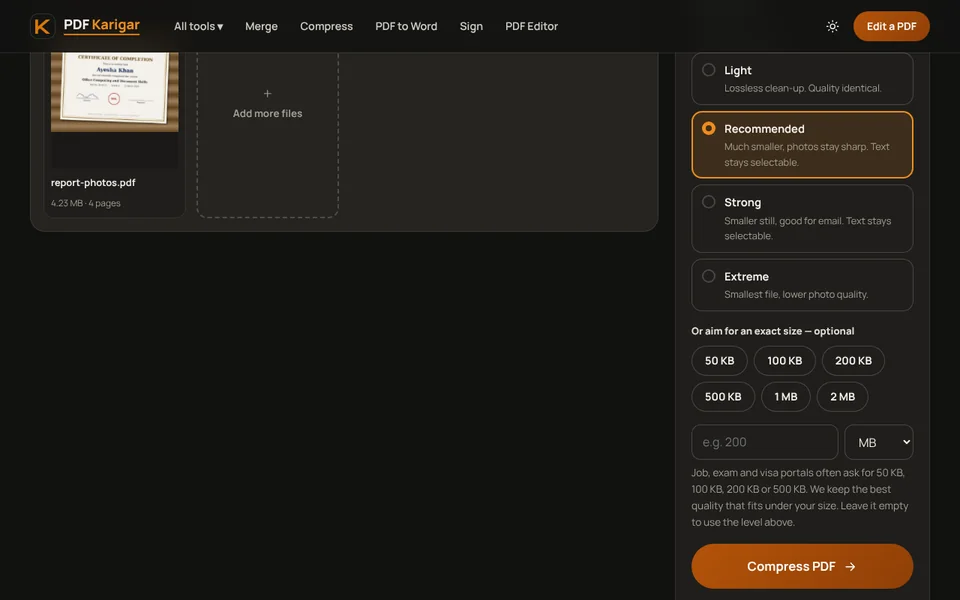
- Leave the level on Recommended and press Compress PDF. For most scanned or photo-heavy files, this alone cuts the size by more than half.
- Still too big? Choose Strong, or type a target such as 2 MB in the size box.
- Open the result, zoom in on small print and logos, then attach it to your email.
Which level should you choose?
- Light is a lossless clean-up. Quality is identical, so use it for contracts and anything that will be printed. Savings are small unless the file is badly made.
- Recommended recompresses photos while keeping them sharp on screen. It is the right choice for most reports, brochures and scans.
- Strong goes further and still keeps text selectable. Good for long scanned documents sent for reading, not printing.
- Extreme gives the smallest file with visibly lower photo quality. Use it when getting the file through matters more than how it looks.
When compression is not enough
- Split a long report with Split PDF and send the parts in separate messages, numbered “1 of 3”, “2 of 3” and so on.
- Drop colour with Grayscale PDF when it adds nothing, such as for scanned letters and forms.
- Remove pages nobody needs, such as blank pages and duplicated appendices, before compressing.
- Send a link for truly large files like design proofs or video storyboards. Attach a small compressed preview so the recipient sees it straight away.
Several attachments or one?
If you are sending a set of documents for one purpose, such as a CV with certificates or monthly invoices for a client, combine them with Merge PDF and compress the merged file once. One well-named attachment is easier to file than six. If the recipient will forward the documents to different people, keep them separate.
Sending private documents by email
Email is not a private channel: messages sit in several mailboxes and are often forwarded. Before sending a payslip, bank statement or medical report, add a password with Protect PDF and share the password by phone or text message, not in the same email. Compressing first and protecting second keeps the file small.
Compression runs on your device, so the document is never uploaded to a server just to make it smaller. That matters when the attachment is a contract, payslip or medical report.
Frequently asked questions
What is the largest PDF I can email?
Gmail allows up to 25 MB of attachments per message and offers a Drive link for anything bigger. Many company mail servers set lower limits, often around 10 MB. Aim well below the limit, because attachments grow by about a third when they are encoded for sending.
Will compressing make the text blurry?
Not with the Light, Recommended or Strong levels: they shrink the pictures inside the file and leave typed text selectable. Only the Extreme level and very small target sizes reduce whole pages to pictures, and the result tells you when that happens.
Is it better to compress or to send a link?
For contracts, forms and anything the recipient must keep, an attachment is easier: it does not expire and needs no account. For very large reports or design files, a link is the better choice.