Banks, card companies, payroll systems and tax portals protect emailed PDFs with a password so that a misdirected email does not expose your finances. That is sensible, but typing the password every time you open a statement, or uploading it to a loan or visa portal that cannot open protected files, gets tiresome. Here is how to find the password and save an unlocked copy of a document that belongs to you.
Where to find the password
- The email or SMS that delivered it. Banks almost always describe the rule in the message, for example a combination of your date of birth and part of your account number, customer ID or national ID number.
- The bank’s help or FAQ pages, under e-statements.
- Net banking or the app. Statements downloaded there are sometimes not protected at all, which can be easier than unlocking an emailed copy.
- Customer service. If the rule changed or you never received it, the bank can tell you or resend the statement.
Rules differ between banks and change over time, so trust the bank’s own message rather than a list on a website.
Other documents that come locked
- e-PAN (India): the password is your date of birth in DDMMYYYY format, for example 15031990. For a company, it is the date of incorporation in the same format.
- e-Aadhaar (India): the first four letters of your name in capitals plus your year of birth. See the Aadhaar PDF password guide for examples.
- Payslips and tax forms from an employer: the payroll or HR email usually states the rule. If not, ask HR.
- Credit card statements and insurance documents: again, the covering email is the place to look.
How to save an unlocked copy
- Open Unlock PDF and add the statement.
- Type its password exactly, including capitals.
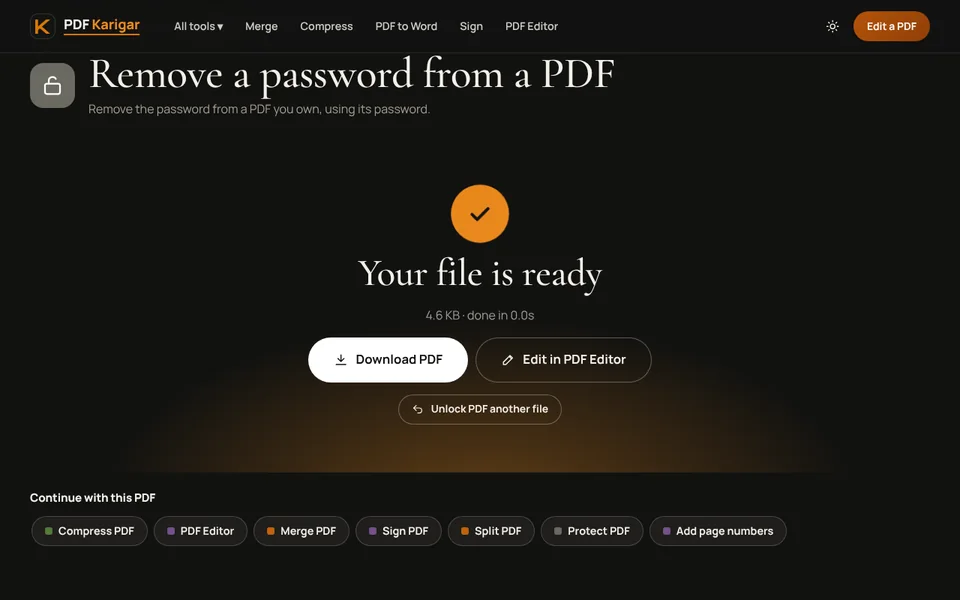
- Press Unlock PDF and download the copy. It now opens without a password.
Some PDFs open freely but block printing or copying. That protection belongs to a separate owner password. If you have it, Unlock PDF removes the restriction too; if you do not, the tool says so and leaves the file alone.
What to do next
- Put it in a spreadsheet: follow how to convert a bank statement PDF to Excel.
- Several months for a visa or loan application: many applications ask for recent statements as one file. Join them in date order with Merge PDF.
- Upload limits: statements are text and usually small, but scanned stamps can make them large. Use Compress PDF if needed.
Statements for visa and loan applications
Portals for visas, loans and rental applications often cannot open password-protected files, so an unlocked copy is the practical choice. Do not change anything in the statement itself: reviewers compare figures and may reject a file that looks edited. Some embassies and lenders ask for statements stamped or signed by the bank. A downloaded PDF may not count in that case, so check the requirement and ask your branch for an attested copy if needed.
Keep unlocked statements safe
An unlocked statement can be read by anyone who gets the file. Store it in a private folder, delete copies from shared computers, and before emailing it, add a password of your own with Protect PDF, shared separately by phone or text. Be wary of services that ask you to upload a locked statement so they can “remove the password” for you; there is no need to hand your financial documents to anyone.
Unlock PDF runs in your browser. Your statement and its password never leave your device.
Frequently asked questions
I don’t know my statement password. What can I do?
Check the email or SMS that delivered the statement, then your bank’s help pages. If you still cannot find it, ask the bank to resend the statement or download it again from net banking. No tool can legitimately open it without the password.
Can PDF Karigar unlock a statement without the password?
No. Unlock PDF only removes protection when you enter the file’s own password. It cannot recover, guess or bypass passwords.
Will unlocking change the numbers in my statement?
No. The file is decrypted, not converted, so every page, number and line stays exactly as the bank issued it.