You do not need a separate app to join PDFs on a phone. Merge PDF works in Chrome, Safari, Samsung Internet and other mobile browsers, and the files stay on your device the whole time. This is handy when a form wants one PDF and your documents arrived as separate attachments.
Before you start: get the files onto the phone
- Email or WhatsApp attachments: open the attachment and save it. On iPhone, use Share, then Save to Files. On Android, use Download or Save to device.
- Google Drive or OneDrive: you can usually pick files straight from these in the file picker. If a file does not appear, download a copy to the phone first.
- Photos of documents: these are images, not PDFs. Turn them into a PDF with JPG to PDF before merging.
Steps on Android
- Open pdfkarigar.com/merge-pdf/ in Chrome.
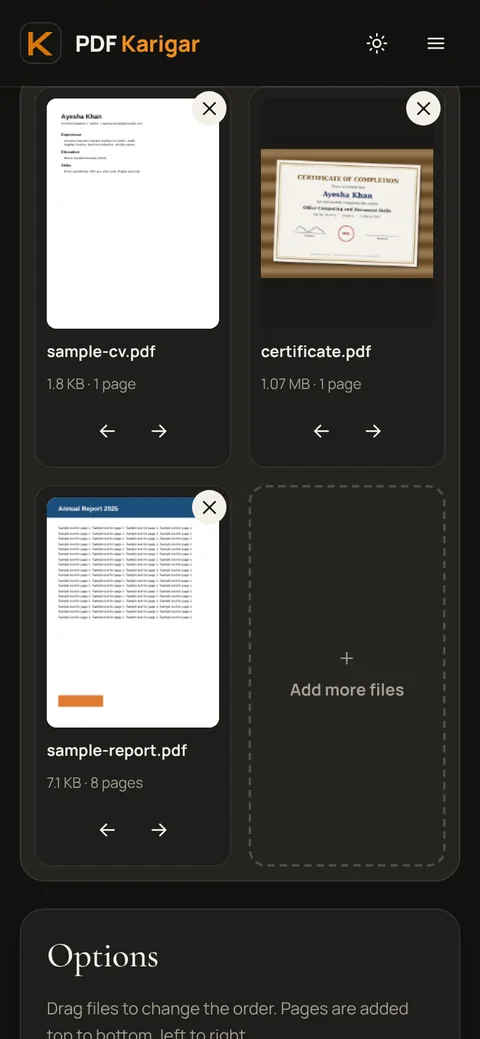
- Tap the upload area and choose Files or Browse. Select two or more PDFs; press and hold to pick several at once.
- Drag the file cards into the order you want the pages to appear.
- Tap Merge PDF, then download. The file is saved in your Downloads folder.
Steps on iPhone and iPad
- Open pdfkarigar.com/merge-pdf/ in Safari.
- Tap the upload area, choose Browse, and select the PDFs from the Files app. Tap Select to pick several.
- Drag the cards into order, tap Merge PDF and download.
- Safari saves the file to the Downloads folder in the Files app. From there you can share it, attach it to an email or save it to iCloud Drive.
Choosing a sensible order
- Applications: follow the order the form lists, usually the form or CV first, then certificates from the highest qualification down.
- Statements and invoices: oldest first, so the pages read like a timeline.
- Letters with attachments: the cover letter first, then each attachment in the order the letter mentions it.
Give the merged file a clear name before sending it, such as “Sara-Ahmed-Application-Documents.pdf”, rather than the “merged.pdf” the browser suggests.
Fixing common problems
- A file is greyed out in the picker. It is not a PDF. It is probably a photo or a Word file. Convert it first.
- A file asks for a password. Open it with its password in Unlock PDF, save the unlocked copy, then merge.
- The merged file is too big to send. Run it through Compress PDF and choose the size you need.
- The pages are in the wrong order or a page is extra. Fix it with Organize PDF, which lets you drag individual pages, or delete pages with Remove pages.
- The phone slows down with huge scans. Merge in two smaller groups, then merge the two results.
Why a browser tool is safer than many merger apps
Many free “PDF merger” apps ask for access to all your files, show heavy advertising or send documents to a cloud service to process them. Merge PDF here uses the browser’s own file picker, which only sees the files you choose, and joins the pages on the phone itself. Contracts, ID scans and bank letters are never sent to a server.
Prefer an app icon? On Android, open the site in Chrome and choose Install app; on iPhone, use Share, then Add to Home Screen. It opens like an app and works the same way.
Frequently asked questions
Is there a limit to how many PDFs I can merge on a phone?
There is no fixed limit. Merging happens on the phone itself, so the practical limit is its memory. Ten or twenty normal documents merge in seconds; very large scanned files are quicker on a computer.
Will the merged file have a watermark?
No. PDF Karigar never adds watermarks or branding to your files, and pages are copied exactly as they are.
Can I merge photos and PDFs together?
Convert the photos to a PDF with JPG to PDF first, then merge that PDF with your other documents.