You might need your transactions in a spreadsheet to build a budget, prepare a tax return, reconcile business payments or answer questions for a loan or visa application. Retyping them is slow and invites mistakes. If your statement is a downloaded PDF, PDF to Excel can rebuild the rows and columns for you, on your own device, in a few seconds.
First, check what kind of PDF you have
Open the statement and try to select a line of text. If you can highlight individual words, the PDF contains real text and will convert. Statements downloaded from net banking and banking apps are almost always like this. If you cannot select anything, the statement is a scan or a photo of paper. It has no text inside, and the tool will tell you so rather than produce an empty sheet.
Step 1: Remove the password
Most banks send statements protected with a password. Open Unlock PDF, add the statement, type the password your bank gave you and download the unlocked copy. Not sure what the password is? See how to find a bank statement PDF password.
Step 2: Convert to Excel
- Open PDF to Excel and add the unlocked statement.
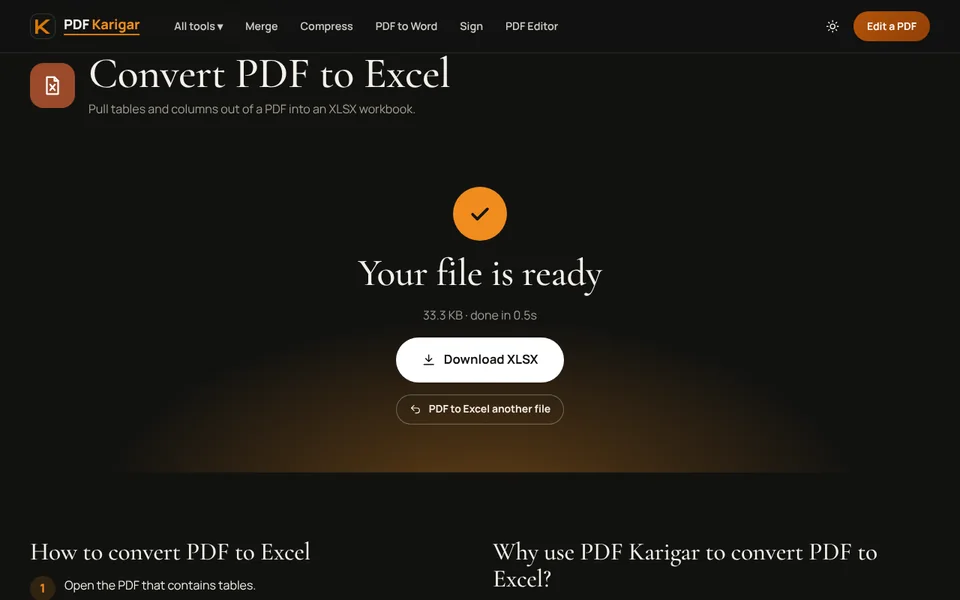
- Press Convert to Excel and download the .xlsx file.
- Open it in Excel, Google Sheets, Numbers or LibreOffice. Each page of the statement is on its own sheet, named Page 1, Page 2 and so on.
Only need one month out of a yearly statement? Pull those pages out with Extract pages first, and convert just them.
Step 3: Put all pages into one table
Copy the transaction rows from each sheet and paste them under the rows on the first sheet. In Excel you can also use Power Query to append the sheets automatically, which is worth it if you do this every month. Then delete the repeated header rows, page footers and summary boxes that each page carries.
Step 4: Tidy the columns
- Wrapped descriptions. When a description runs onto a second line on the statement, that second line can arrive as its own row. Move it up into the description above and delete the extra row.
- Dates. If Excel treats dates as text, select the column and use Data, then Text to Columns, and choose the date format your bank uses, for example DMY.
- Amounts. Plain amounts, including lakh-style figures and bracketed negatives, arrive as real numbers you can add up. Amounts printed with Cr or Dr in the same cell stay as text; split the letters into their own column with Text to Columns.
- Shifted cells. Columns are rebuilt from where the text sits on the page. If a row has a value one column out, drag it into place.
Step 5: Check the balance
Before you rely on the sheet, test it. Add up the credits and the debits with SUM, then check that opening balance plus credits minus debits equals the closing balance printed on the statement. If it does not, a row is missing or duplicated, usually at a page break. This takes a minute and catches almost every conversion problem.
Why a private converter matters here
A bank statement shows your account number, balance, salary, rent and who you pay. Many “AI statement converters” upload the file to a server to process it. PDF to Excel on this site reads the statement inside your browser, so the transactions never leave your device. When you are done, delete the unlocked copy if you are on a shared computer.
If the result is not usable
Unusual layouts, such as statements with transactions in boxes or columns printed vertically, may need more cleanup than they are worth. In that case, PDF to Text gives you the raw text in reading order, which is often easier to paste into a sheet line by line.
Frequently asked questions
Does this work with any bank?
It works with statements downloaded as PDFs from net banking or a banking app, because those contain real text. Layouts differ between banks, so expect to tidy a few columns. Scanned or photographed paper statements contain no text and cannot be converted.
Can I convert several months at once?
Yes. Add several statement PDFs together and each becomes its own Excel workbook. If you want one workbook, join the months first with Merge PDF, then convert the merged file.
Are amounts converted as numbers?
Yes, where the cell holds just an amount. Both 1,234,567 and lakh-style 12,34,567 groupings become numbers, and bracketed amounts like (1,234.50) become negative numbers. Amounts written together with Cr or Dr in the same cell stay as text, so split those off in Excel.