When you download e-Aadhaar from UIDAI’s website or the mAadhaar app, the PDF is protected with a password. The password is not one you chose; it is built from details printed on your Aadhaar. Once you know the rule, the file opens in seconds, and you can save an unlocked copy if you need to upload it or print it often.
The password format
According to UIDAI, the password is the first four letters of your name as printed on Aadhaar, in CAPITAL letters, followed by your year of birth in YYYY format. It is always eight characters for names of four letters or more.
- Name SURESH KUMAR, born 1990: SURE1990
- Name SAI KUMAR, born 1990: SAIK1990. The space is skipped and counting continues into the next word.
- Name P. KUMAR, born 1990: P.KU1990. Characters are counted as printed, so the full stop counts.
- Name RIA, born 1990: RIA1990. Names shorter than four letters use the whole name.
Why the password does not work
- Small letters. The letters must be capitals. Check that Caps Lock is not reversing them on a computer.
- Full date of birth. Only the year is used, not the day and month.
- Name spelling. Use the English name exactly as printed on your Aadhaar, not a nickname or the spelling on another document.
- Recently updated name. If you changed your name, a copy downloaded before the update uses the old name.
- Autocorrect on phones. Phone keyboards sometimes change the first letter to capital and the rest to small. Type slowly and check.
How to save an unlocked copy
- Open Unlock PDF and add your e-Aadhaar PDF.
- Type the password in the format above.
- Press Unlock PDF and download the copy. It opens without a password from now on.
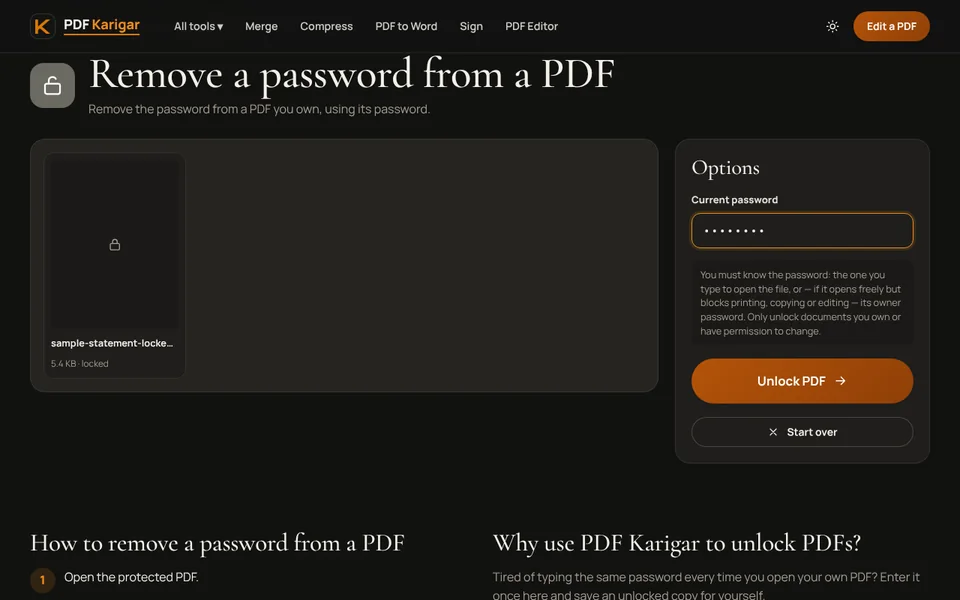
The tool only removes a password you enter. It cannot guess or bypass one, which also means it is no use to anyone who gets hold of someone else’s file.
Keep the original download
e-Aadhaar is digitally signed by UIDAI, which is how an organisation can check that it is genuine. A copy that has been unlocked and saved again may no longer show that signature as valid. Keep the original downloaded file and give that one to anyone who says they will verify the signature. Use the unlocked copy for printing and for portals that only need a readable copy.
Lost the file or need a fresh copy?
You can download e-Aadhaar again at any time from UIDAI’s myAadhaar portal using your Aadhaar number and a one-time password sent to your registered mobile number. UIDAI says a downloaded e-Aadhaar is as valid as the physical card, so a clear printout on A4 paper is accepted in most places that ask for an Aadhaar copy.
Share as little as possible
- Use masked Aadhaar when the full number is not needed. UIDAI offers a masked version that shows only the last four digits.
- Redact what is not needed with Redact PDF, which removes the hidden content permanently rather than just covering it.
- Re-protect before emailing. Add your own password with Protect PDF and send it separately.
- Delete unlocked copies from shared or office computers when you are done.
When a portal wants an image or a small file
Some forms want Aadhaar as a JPG rather than a PDF. Convert the page with PDF to JPG. If the form has a size limit, compress the unlocked PDF, for example with Compress PDF to 200 KB.
Unlocking happens in your browser. Your Aadhaar file and password are never sent to our servers.
Frequently asked questions
Is the Aadhaar PDF password case-sensitive?
Yes. The four letters must be capitals. suma1990 will fail where SUMA1990 works.
Is the password the same for masked Aadhaar?
Yes. A masked e-Aadhaar, which hides all but the last four digits of the number, uses the same password format.
Is it safe to remove the password?
It is your own document and you are using its own password, so it is allowed. Keep the unlocked copy private, because anyone who gets it can open it without a password.