Long PDFs often contain one page you actually need: a signed page from a contract, a single chapter from a book, last month from a yearly statement, or your result from a board’s results file. Extract pages saves just those pages into a new PDF and leaves the original untouched.
Extract, split or remove: which one?
- Extract pages when you know which pages you want to keep, especially a few pages from a long file.
- Remove pages when you want to keep almost everything and drop a few pages, such as blank sheets.
- Split PDF when you want to cut the whole file into parts, such as one file per chapter or one file per page.
Steps
- Open Extract pages and add your PDF. Every page appears as a thumbnail.
- Tap the pages you want, or type a range such as 1-3, 7.
- Choose whether to save them as one combined PDF or as separate files. Separate files download together in a ZIP.
- Download the result. Your original file stays exactly as it was.
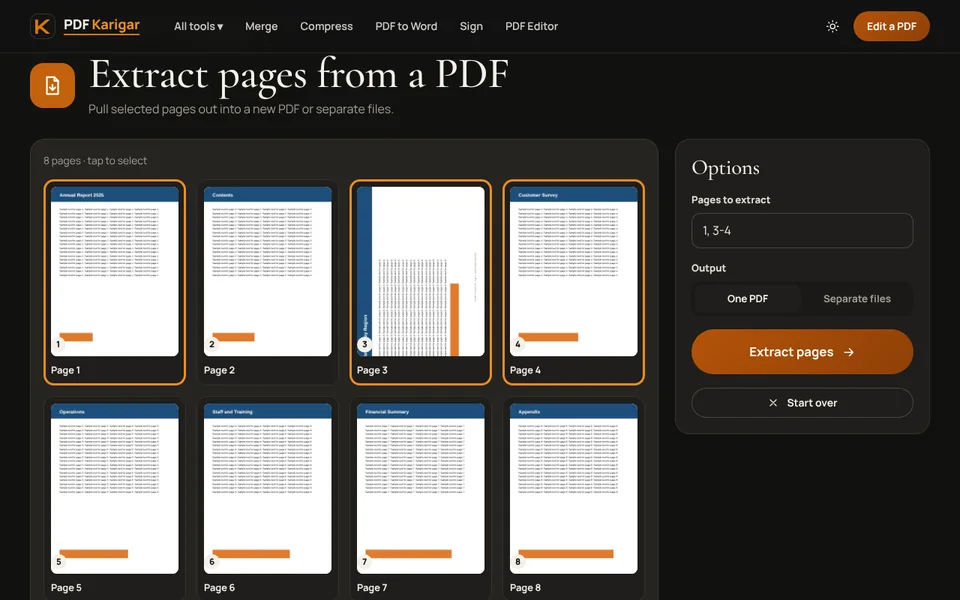
Page range examples
- 5: page 5 only.
- 1-3: pages 1, 2 and 3.
- 2, 4, 6: three separate pages.
- 1-2, 10-12: the first two pages and pages 10 to 12, together in one file.
Page numbers here are positions in the file, counting from the first page as 1. They can differ from the numbers printed on the pages, for example when a report has roman-numbered front pages, so check the thumbnails.
Everyday uses
- Sending only what was asked for. An employer wants the page of your degree transcript with your final grades, not all twelve pages.
- Sharing less personal data. Send the one page of a bank statement that shows the payment in question rather than a whole month of transactions.
- Making a smaller file. Fewer pages means a smaller PDF, often enough to get under an upload limit without compressing.
- Pulling out a chapter from a long manual or textbook PDF to read on your phone.
Keep enough context
A single page taken out of a long document can be confusing on its own. The recipient may not know which statement, contract or report it belongs to. Often the first page carries the name, date and reference number, so extracting “1, 7” is clearer than “7” alone. For a signed agreement, keep the signature page together with the page that names the parties. Before sending, open the new file and count the pages, so you know nothing was left out or added by mistake.
Only need part of a page?
Sometimes the thing you want is smaller than a page: one table from a report, a chart for a presentation or a photo from a brochure. PDF Screenshot lets you draw a box around any area and save it as a sharp PNG or JPG, which is easier to paste into a document or a chat than a whole page.
On a phone
The tool works the same in a mobile browser. Thumbnails are easy to tap, and typing a range is quicker than scrolling through a long document. Save the result to Files or Downloads, then share it from there.
If the PDF is password protected
A PDF that asks for a password when you open it must be unlocked first. Use Unlock PDF with that password, then extract the pages from the unlocked copy. If the original was confidential, consider adding a new password to the extracted pages with Protect PDF before sending them.
Need pages from several PDFs in one file? Extract from each and join the results with Merge PDF, or do it in one step with Organize PDF.
Frequently asked questions
How do I type page ranges?
Use commas between items and a hyphen for a range. For example, 1-3, 7, 10-12 keeps pages 1, 2, 3, 7, 10, 11 and 12.
Do extracted pages lose quality?
No. Pages are copied as they are, so text stays selectable, links keep working and images stay sharp.
Can I extract pages from several PDFs into one file?
Use Organize PDF: add all the PDFs, keep only the pages you want, drag them into order and save one file.