Printing a form, filling it in by hand and scanning it back is the slowest way to deal with paperwork. Many PDF forms, such as admission forms, bank forms, visa questionnaires and HR documents, have boxes you can type into. Fill PDF form lets you complete them on your phone in the browser, with no app to install.
Before you start: save the form to your phone
When you tap a form link, the phone often opens it in a viewer instead of saving it. Look for Download, or on iPhone tap Share, then Save to Files, so the PDF is in Files or Downloads where you can pick it. If the form arrived on WhatsApp or email, save the attachment the same way. A form that asks for a password when you open it must be opened with that password in Unlock PDF first.
Fill a form with fields
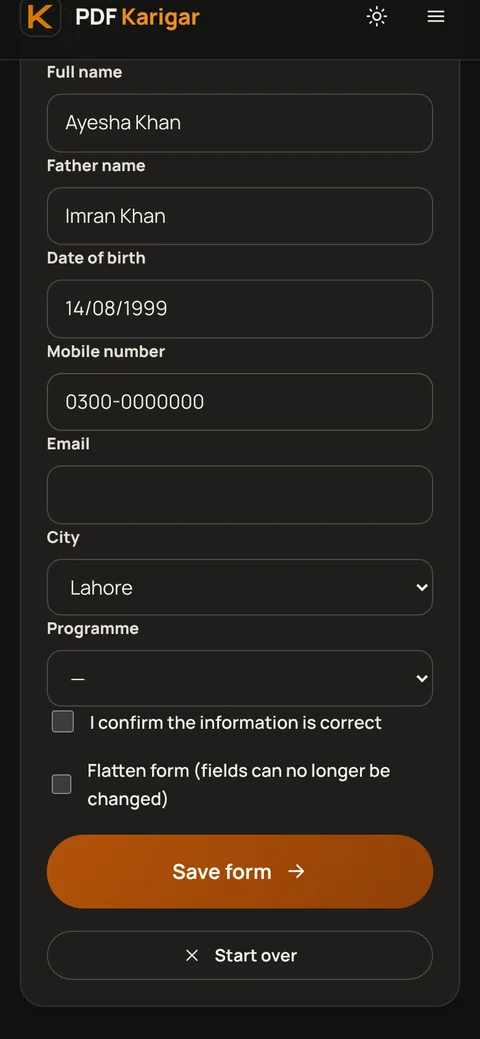
- Open Fill PDF form on your phone and choose the PDF from Files or Downloads.
- The form’s fields appear as a list: text boxes, drop-down menus, choices and tick boxes. Fill them in one by one.
- Tick Flatten form if you want the answers locked in place (see below).
- Press Save form and download the filled PDF.
Tips for typing on a small screen
- Follow the format the form asks for. If a date box says DD/MM/YYYY, type 14/08/1999, not 14 August 1999. Some forms check the format.
- Use the field names. The list shows the name stored in each field. On well-made forms these match the labels on the page; on others, compare with the page to be sure.
- Turn on desktop view only if needed. The fields list is designed for phones, so there is normally no need to zoom.
- Check spelling of names. Names must match your ID exactly on official forms.
When the form has no fields
Many forms are flat PDFs or scans, with lines to write on but no boxes to type into. Fill PDF form tells you when that is the case and offers to open the file in the PDF Editor. There, choose Add text, tap where an answer goes, and type. Zoom in so the text lines up neatly with the lines on the page, and keep the text size similar to the printed labels.
Should you flatten?
A filled but unflattened form can still be edited by whoever receives it, and some viewers display fields differently. Flattening makes your answers a permanent part of the page. Flatten the copy you send, especially for applications and agreements, and keep an unflattened copy for yourself in case you need to change something later.
Signing the form
Most forms end with a signature. After saving the filled form, open it in Sign PDF, draw your signature with your finger and place it on the line. Add the date if the form asks for it. See how to sign a PDF without printing for more on signatures.
Sending it
If the portal has a size limit and the form contains scanned pages, use Compress PDF. If you are emailing a form with personal details, add a password with Protect PDF and send the password separately.
The form is filled on your phone. Your answers are not sent to our servers.
Frequently asked questions
Why can’t I type into my PDF form?
The form has no fillable fields. It is a flat page, often a scan. Open it in the PDF Editor and use Add text to type on top of the lines and boxes.
What does flattening a form do?
It turns your answers into a fixed part of the page, so they can no longer be changed and look the same in every viewer. Flatten only when you are sure everything is correct, and keep an unflattened copy in case you need to edit it.
Will my answers be saved if I close the tab?
No. Nothing is stored on a server, so download the filled form before closing the page.