Compress PDF
How to Compress a PDF to 100 KB: 4 Practical Methods
Need a PDF under 100 KB for an upload form? Four ways to shrink it with an online tool, Preview, Acrobat or Ghostscript, plus fixes if it still won’t fit.
Some job portals, exam registrations and government forms accept documents only up to 100 KB, and a scan taken with a phone camera can be far larger. A target-size compressor is the simplest fix. If a file still won’t fit, lower its image resolution or remove pages. This guide covers four ways to do it.
Key Takeaways
- Images, not text, usually make PDFs large, so compression works mainly by lowering image resolution and quality.
- In a test of three synthetic files with a 100 KB target, an online compressor shrank a one-page scan from 1.10 MB to 94.1 KB, but could not get a text-only file or a six-page scan under 100 KB.
- Acrobat and Ghostscript give finer control over image settings, while Preview offers one preset filter.
- Reopen the compressed file and confirm that names, numbers and stamps are still readable before you upload it.
The four methods at a glance
| Method | Works on | How you control size |
|---|---|---|
| Online compressor | Any modern browser | Target-size presets |
| Preview | Mac | One preset filter |
| Acrobat | Windows and Mac | Image downsampling and compression |
| Ghostscript | Windows, Mac, Linux | Resolution presets |
Method 1: Use an online compressor with a target size
Compress PDF files online is PDF Karigar’s own tool. After you add a PDF, you choose a compression level (Light, Recommended, Strong or Extreme) or tap a target size of 100 KB, 200 KB, 500 KB, 1 MB or 2 MB. You can also type your own size in KB or MB. With a target size, the tool tries quality settings from best to lowest and keeps the best one that fits.
- Open the tool and choose your PDF.
- Tap 100 KB.
- Select Compress PDF.
- Download the result and check its size.
PDF Karigar’s privacy policy says files are processed in your browser and not sent to its servers, which matters for ID cards and certificates.
What a test showed
Three synthetic PDFs, generated for this guide, were run through the live tool on 2026-11-08 with a 100 KB target:
| Test file | Original | Result |
|---|---|---|
| Text-only PDF | 107.7 KB | 106.1 KB, not under 100 KB |
| One-page colour scan | 1.10 MB | 94.1 KB |
| Six-page colour scan | 6.62 MB | 200.4 KB, not under 100 KB |
The one-page scan fit, and its text stayed readable. For the other two files the tool said it couldn’t get under 100 KB and showed the smallest size it could reach. This matches the tool page’s own note that text-only PDFs are already compact and the big savings come from photos and scans. Six pages of scans stayed above 100 KB even at the smallest possible size. Each file was run once, and results vary with file type and content.
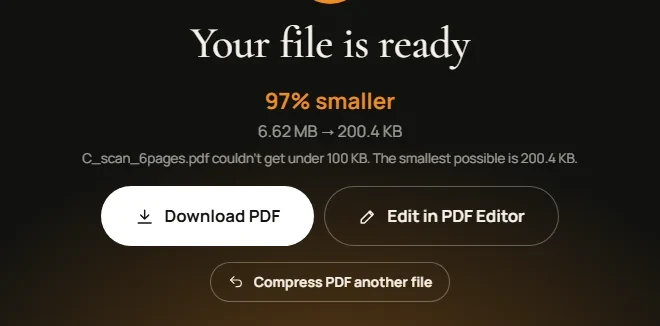
In the six-page case, splitting the file or removing pages is the next step.
Method 2: Use Preview on a Mac
- Open the PDF in Preview.
- Choose File > Export.
- Open the Quartz Filter menu and select Reduce File Size.
- Click Save, preferably under a new name.
Apple’s Preview guide offers this filter and a few image options rather than a size target, and warns that the result may look worse than the original. Check the file size afterwards.
Method 3: Use Adobe Acrobat
On Windows, choose Menu > Save as Other > Optimized PDF. On a Mac, choose File > Save as Other > Optimized PDF. Adobe’s guide says the Mobile setting downsamples colour and grayscale images more than Standard, and Custom lets you adjust the Images panel. Check the size after each save.
Method 4: Use Ghostscript for batch jobs
Ghostscript is free command-line software for shrinking many files. The Ghostscript documentation lists 72 dpi for colour images under the /screen preset and 150 dpi under /ebook, and warns that presets can make output worse than the input.
gs -sDEVICE=pdfwrite -dPDFSETTINGS=/ebook -o output.pdf -f input.pdf
Try /ebook first, then /screen if the file is still over 100 KB. Always start from the original file.
If the file is still over 100 KB
Change the document before compressing again:
- Convert colour pages to grayscale with Grayscale PDF.
- Crop wide margins with Crop PDF.
- Delete pages the form does not require with Remove Pages, or keep only the ones you need with Extract Pages.
- Split a long document with Split PDF if the portal allows several files.
Keep the original file in case you need to start again.
Check the file before you upload
Open the compressed PDF at 100 percent zoom. Names, ID numbers, dates and stamps should be easy to read. Then check the size, and leave a few KB of margin in case the portal measures it differently.
Try it on your file
Ready to get under 100 KB? Open the 100 KB PDF compressor in your browser and run your file through it.
Written by Mechanic Tech. Solution, the company behind PDF Karigar. Source details and test results are from 2026-11-08. Spotted an error? Tell us through our contact page or at [email protected]. Learn more about PDF Karigar.
Sources
- Compress PDF files online, PDF Karigar, tool page and live test, 2026-11-08
- Privacy Policy, PDF Karigar, last updated 25 October 2026, retrieved 2026-11-08
- Preview User Guide, Apple Support, retrieved 2026-11-08
- Reduce PDF file size with advanced options, Adobe Acrobat help, page last updated 2026-10-28, retrieved 2026-11-08
- High level output devices, Ghostscript documentation, retrieved 2026-11-08